Monday, June 8, 2009

Tips for Troubleshooting Slow Internet Connections

Colasoft Network Analyzer
/>

Follow these steps to diagnose your slow Internet connections


1. Configure Broadband Router Settings Properly

Improperly broadband router configuration will probably lead to slow internet connections. keep consisting your router's settings with the manufacturer's and your Internet Service Provider (ISP)

recommendations.


2. Reposition Router and Change WI-Fi Channel Number

Signal interference which requires computers to resend messages to overcome signal issues constantly may affect the performance of Wi-Fi and other types of wireless connections, repositioning

your router and changing your Wi-Fi channel number may benefit your connection performance.


3. Run Antivirus Software Regularly To Diagnose and Remove These Worms

Internet worm may begin generating huge network traffic, causing slow network connection if any of your computers are infected. Remember to run antivirus software regularly to diagnose and

remove these worms from your computers.


4. Don't forget the Running Background Applications

Some useful background applications, like Peer to peer (P2P) programs, will greatly consume network recourses. Therefore, don’t be blind to the running background applications when facing

slow network connection issues.


5. Temporarily Re-Arrange and Re-Configure Your Gear

Faulty network equipment typically won't support connections. To troubleshoot potentially faulty equipment, temporarily re-arrange and re-configure your gear while experimenting with different

configurations. Try bypassing the router, swapping cables and changing network adapters to isolate the slow performance to a specific component of the system.


6. Inquire Your Service Provider

Internet speed ultimately depends on the service provider. Don’t forget to inquire your ISP about what happened if you suspect they have main responsibility in your poor connection performance.


Conclusion

Reasons for slow connection are diversified, the 6 tips for troubleshooting slow internet

connections
are basic solutions that may guide you when suffering network connection problems,moreover, to diagnose and troubleshoot the issues manually is not an easy work. nowadays,

many network administrators usually choose some easy - to - use network analysis tools, like Colasoft Network Analyzer (also called

packet sniffer, network sniffer, protocol analyzer) to monitor,analyze, and troubleshoot their network in minutes.

How to Monitor MSN Chat with Free Unipeek MSN Monitor

For some purposes we want to monitor MSN chat around the network, for example, parents want to monitor MSN chat of their kids to ensure their safety; bosses want to monitor MSN chat of employees for company assets security and to improve work efficiency by minimizing none-business chat during working hours. You may still remember Colasoft MSN Monitor, now it is called Unipeek MSN Monitor and it is distributed completely Free for none commercial users.


Now let’s see how we can monitor MSN chat with Unipeek MSN Monitor, the free tool.


Step1. Download Unipeek MSN Monitor


Download Unipeek MSN Monitor, the free edition; from the website. As a matter of fact there is no function difference between Unipeek MSN Monitor the free edition and the commercial edition. The only difference is Unipeek MSN Monitor Free Edition only supports 10 MSN accounts maximum, but quite enough for family users.


Step2. Install and Deploy Unipeek MSN Monitor


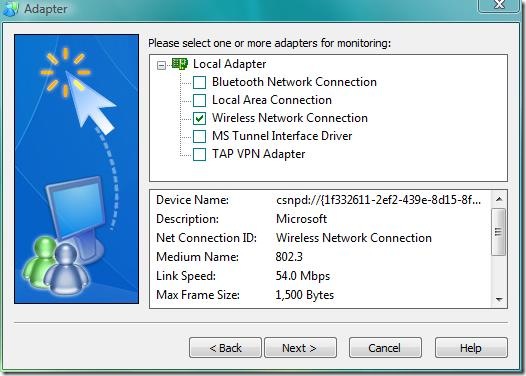
The installation is quick and simple, just click “next” all the way to complete the installation. But the deployment is somewhat different. As Unipeek MSN Monitor is designed based on Colasoft’s packet capturing technology, so it has to be deployed properly like a packet sniffer if you want to monitor all MSN chat around the network. Of course, you don’t have to do it if you only want to monitor MSN chat of a single computer. To monitor multiple computers, you can install multiple copies.


How to Monitor MSN Chat Screenshot 1


Setp3. Run it and Start Monitor MSN Chat


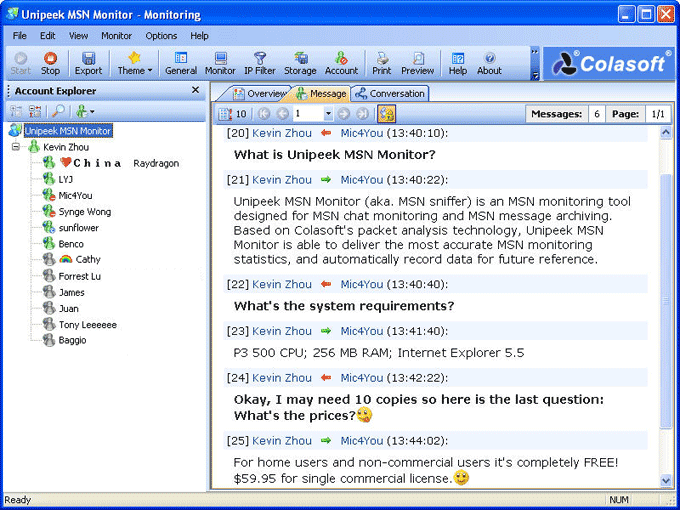
After proper installation and deployment, we can start monitoring MSN chat right away.


How to Monitor MSN Chat Screenshot 2


About Unipeek MSN Monitor
Unipeek MSN Monitor (MSN sniffer) is Free MSN monitoring software for MSN chat monitoring and MSN message archiving. Based on Colasoft's packet analysis technology, Unipeek MSN Monitor is able to deliver the most accurate MSN monitoring statistics, and automatically record data for future reference. You need only install Unipeek MSN Monitor once to monitor all MSN chats over the local network.


Key Features include:

• Real-time and 24/7 MSN chat monitoring

• Automatically archive MSN messages for future reference

• Export messages of a custom time range

• Customize MSN account list to be monitored

• Unique Conversation Matrix showing account relations

• Support emotion icons, message font size and color.


Download Now

Download Unipeek MSN Monitor

Free counter and web stats