Tuesday, April 28, 2009

How to Monitor Internet Traffic with protocol analyzer?

Internet traffic is the flow of data around the Internet. It includes web traffic, which is the amount of that data that is related to the World Wide Web, along with the traffic from other major uses of the Internet, such as electronic mail and peer-to-peer networks.


In case we want to monitor internet traffic generated or is generating in LAN, here is a detailed process how we can do it with Colasoft protocol analyzer – Capsa.


Again we must make sure the protocol analyzer software is correctly implemented so we can capture all the traffic in LAN, if you don’t know how to do it, please make sure you read how to implement a protocol analyzer.


First let’s launch a new project with Colasoft protocol analyzer, then do some online activities, such as chatting, browsing a website, sending and receiving emails, downloading some files. All these activities will generate different kinds of internet traffic. We may keep the project running to continuously monitor internet traffic or stop the project to do some analysis.


To monitor internet traffic, we’d better first select the “Internet Addresses” in the “Explorer” on the left window:
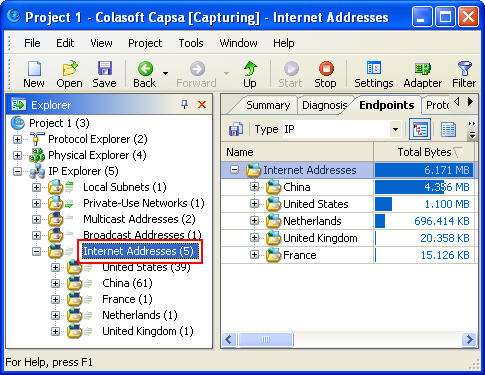

Monitor Internet Traffic Screenshot1


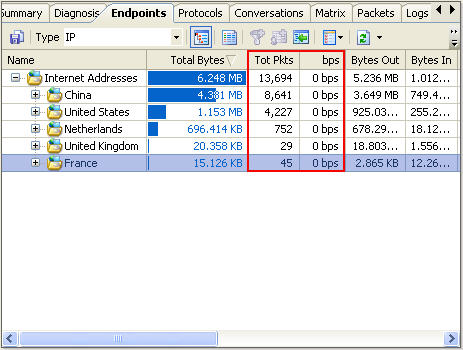
We can see that all the internet addresses are listed by countries, to monitor internet traffic of a specific country, we just need click on it; If we want to monitor internet traffic of a specific IP address within one country, we need to expand the country node and select the IP address in it.


Also we can monitor internet traffic aggregated or internet traffic in real-time

Monitor Internet Traffic Screenshot2


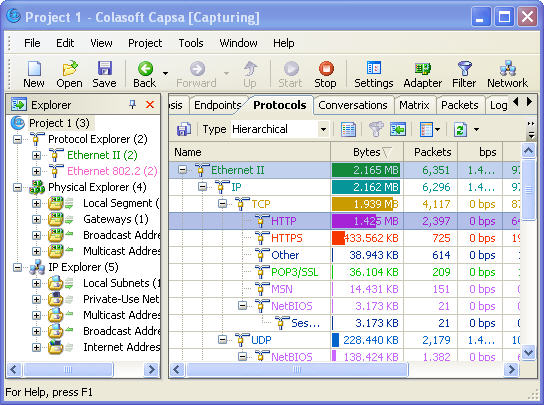
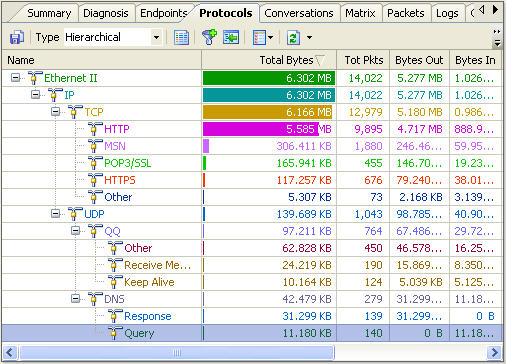
To view what online activities have generated or are generating internet traffic, we need to use the “Protocols” Tab.

Monitor Internet Traffic Screenshot1


We can see there are protocols which separately stand for different internet activities:


HTTP – Website browsing

MSN – online chatting with Live Messenger

POP3 – Email

HTTPS - Website browsing via a secure link

QQ- online chatting with QQ

DNS – Domain Name System


About Capsa


Colasoft Capsa is a network analyzer (protocol analyzer or protocol analyzer) designed for network monitoring and troubleshooting. It performs packet capturing, network monitoring, protocol analyzing, packet decoding, and automatic diagnosing. By giving users insights into all of network's operations, Capsa makes it easy to isolate and solve network problems, identify network bottleneck and bandwidth use, and detect network vulnerabilities. Learn more about Capsa, please visit http://www.colasoft.com/capsa/

Thursday, April 23, 2009

How to Monitor http Traffic with protocol analyzer?

Hypertext Transfer Protocol (HTTP) is an application-level protocol for distributed, collaborative, hypermedia information systems. Its use for retrieving inter-linked resources led to the establishment of the World Wide Web.


In order to monitor http traffic, we will need a protocol analyzer (or a protocol analyzer) software. Here is a detail process how we can monitor http traffic in LAN with Colasoft protocol analyzer – Capsa.


Again let’s launch Colasoft protocol analyzer and start a new project. Don’t forget one thing, we have to deploy the protocol analyzer to the mirror port of the core switch in order to monitor all http traffic in LAN, if not, we can only monitor http traffic of our own computer.


Then let’s start browsing a website, for example, www.colasoft.com, to generate some http traffic. Now let’s get back to the protocol analyzer and see if there is http traffic. OK, we can see the protocol analyzer has already captured some http traffic in the “Protocols” Tab


Monitor http Traffic Screenshot 1


We can see both the aggregated http traffic since start capturing and the real-time http traffic in this tab.


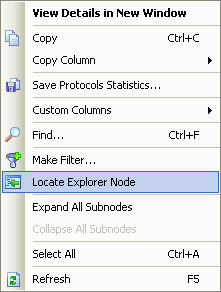
If we want to do a deeper analysis on http traffic, we will need to use the “Locate” function to locate http protocol in the Explorer to let the protocol analyzer display only the data that is http protocol. Right click on the protocol and select “Locate Explorer Node” in the pop-up menu.


Locate Explorer Node


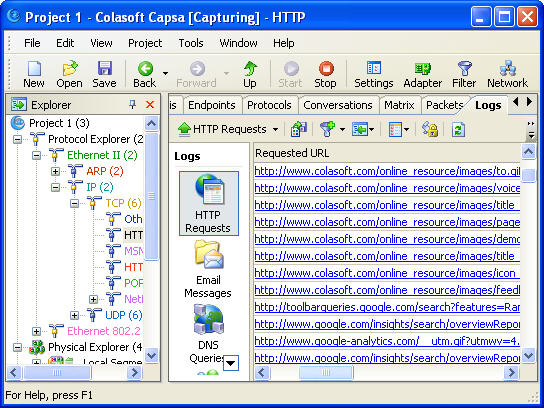
If we want to know who are using http protocol and what they are actually browsing, we are going to use two tabs, the “Endpoints” Tab and “Logs” Tab.


Let’s see who are using http protocol:


Who is Using http Protocol


And what they are actually browsing:


Monitor http Traffic Screenshot 4

Free counter and web stats